
Installing Ubuntu 8.10 on the Eee PC 901
The Eee PC 901 is an Intel Atom-based laptop, with 1 GB of RAM, a 20 GB SSD, and a 9 inch display. Since I bought mine, it’s been running Ubuntu 8.04 rather than the default Xandros-based OS. The laptop is surprisingly unfriendly to Ubuntu despite being preloaded with Linux. Ubuntu 8.10 has delivered some improvements for Eee PC laptops, but it still doesn’t work perfectly out of the box.
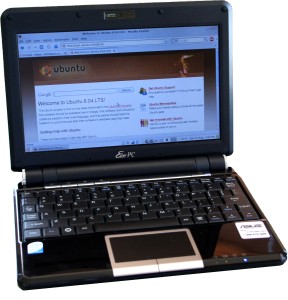
Here’s my guide to installing Ubuntu 8.10 on the Eee PC 901. Most of the instructions will also likely be relevant to the other Eee PC models.
Boot the Ubuntu installer from a SD card or USB drive. If you have another Ubuntu 8.10 system around, the easiest way to create a bootable SD card or USB drive is using the USB Startup Disk creator tool (click the link for more details). Alternatively, you can use the UNetbootin tool (click the link for more details) to do the same thing.
To perform a USB boot on the Eee PC, press the escape key during startup and select the USB option. Once the live system is running, if you have trouble with windows not fitting the screen turn desktop effects off for now so you can use the Alt key to pan windows.
Install Ubuntu normally. The only special consideration to make during the installation is partitioning.
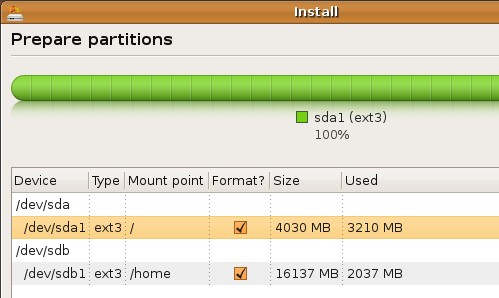
The Eee PC 901 actually has two solid state drives: a 4 GB drive, and a 16 GB drive. I’d recommend putting root (/) on the smaller drive (yes, 4 GB is enough space for Ubuntu and some additional applications) and /home on the larger. I’d also recommend formatting these with the Ext3 filesystem and to not create a swap partition to avoid shortening the drive’s lifespan.
Reboot into the new installed system. You’ll need to get an Internet connection working to continue. Wireless is not working at this point, so you’ll need to plug in to a wired network.
Install the custom Eee PC Linux kernel. The Array.org Eee PC kernel adds wireless networking support to Ubuntu on the Eee PC, as well as some other fixes depending on your Eee PC model. See this page for details on supported models.
Open a terminal and run the following two commands to install the key for the new repository:
wget http://www.array.org/ubuntu/array-apt-key.asc
sudo apt-key add array-apt-key.asc
Open
System->Administration->Software Sourcesand select theThird Party Softwaretab. Add the following software source:deb http://www.array.org/ubuntu intrepid eeepcClose
Software Sourcesand when prompted, choose to reload the repositories.Install the Eee PC kernel from the packagelinux-eeepc (click the link to install), or by running the command below in your terminal:
sudo apt-get install linux-eeepcAlternatively, you can try the faster but experimental lean Eee PC kernel in which drivers for non-Eee PC hardware have been removed. Install the lean Eee PC kernel from the packagelinux-eeepc-lean (click the link to install), or by running the command below in your terminal:
sudo apt-get install linux-eeepc-leanOptionally, you can remove some packages to stop the stock Ubuntu kernel from being updated in the future now that you won’t be using it. Remove the linux-generic, linux-image-generic, and linux-restricted-modules-generic packages to do this:
sudo apt-get remove linux-generic linux-image-generic linux-restricted-modules-genericReboot to load the new Eee PC kernel.
Enable Bluetooth and webcam. The Bluetooth radio and webcam both work after they have been enabled in the BIOS. Install Cheese for an easy way to take pictures and video.
That’s it for installing Ubuntu 8.10 on the Eee PC. For the most part, everything works fine with Ubuntu. GNOME reports 4.5 hours of battery life, and with the lean Eee PC kernel the system boots in 35 seconds (from Grub to GDM, with SSD tweaks).
You may also want to check out Four Tweaks for Using Linux with Solid State Drives to increase performance and extend the life of your solid state drive.
Archived Comments
Derek Buranen
What’s with the lack of swap? How do you hibernate? Hibernating is clutch on these to improve boot time.
I used a swap on my 701 to hibernate. I’ve heard that the wear on your hard drive still gives you plenty of years with the thing.
Matsu
Also, as a final step you might want to install eee-control, which is a pretty nifty tool allowing you to map those special keys on the Eee PC, and en-/disable bluetooth and the webcam right from your system tray:
charles
The package linux-backports-modules-intrepid contains the necessary modules for the Eee’s wireless. The array.org kernels are not needed.
Spike Burch
Try ubuntu-eee :)
zulu11
Install full Ubuntu 8.04 or 8.10 then run these commands:
wget http://eee.ricey.co.uk/files/eee/RiceeeyTweak.sh
sh RiceeeyTweak.sh
That will reset windows sizes, fonts, etc to be suitable for eee.
zulu11
Currently running Mandriva 2008 Spring Powerpack on my eee, everything seems to work, haven’t tried wireless or the webcam yet. Still having some issues getting 3G mobile broadband to play nicely.
Bill Goldberg
Or you can use one of the special Ubuntu based eeepc distro’s like ubuntu-eee or eeebuntu, thus avoiding to have to install the custom kernel.
I used eeebuntu and everything, including the webcam and wireless worked OOTB.
For people using an external hdd for this, don’t forget to use the first partition on the external hdd, set a boot flag to it using gparted and format the first partition as fat32.
Unetbootin will do the rest.
Carmelo
Thanks :)
I have just done that and everything goes ok :)
Can I translate your tuto into french for my blog ?
Thanks.
Carmelo
Stronghold
Great tutorial! But you need to make a hint on how to install the 915resolution or else the eeepc will not work correctly..
MilchFlasche
Actually Ubuntu Eee 8.04.1 has included the Array.org kernel.
Anonymous
i recently purchased an eee 900, and was seriously disappointed with the xandros OS, if i had wanted my computer dumbed down to the capabilities of a big ass cell phone it would have been great. i installed ubuntu 8.10 and it runs great. took a little elbow grease to get things like wifi working and there was also a shut down issue, the computer would shut down but not power off completely. but i was ablwe to easily google a solution. i would recommend that anyone upgrade to full ubuntu on their eee. i am not very technically savy, if i could do it, anyone can.
Alec
cj
If the linux-backports-modules-intrepid has wireless drivers, as mentioned above, they didn’t seem to be enabled by default or available in any newbie-obvious location.
fat_tuesday
Great tutorial - thanks!
Anonymous
what about the microphone?
on the ubuntu - eee dist based off of ubuntu 8.04 the microphone doesnt work
does it work now in 8.10?
Anonymous
> what about the microphone?
Works on my PC901 with the array.org kernel.
Anonymous
Tom. Your Tutorials Rule. Thanks for getting my EEE Pc Working!
Chris
Great guide thank you. I have an eee 900a and have only run into one real problem I can’t seem to figure out. Some windows are too tall to fit on screen and I can’t seem to figure out how to move them or pan down so I can the entire window. This is mostly a problem for non resizable settings dialogs.
Can anyone point me to a workaround for this? Thanks.
yanko
thank you very much for this precious help for a beginner like me. my eee 901
works finally:))
But what to do with the others kernels I see on booting on the grub? can I
deleted them? and how??
(I have XP and Ubuntu instaled on this PC)
Anonymous
My head hurts.
You want to recommend formatting with ext2, no?
anon
great tutorial
thanks
beganeer
very… very.. great tutorial… you already help me so far.. thank you so much for this tutorial !!!
tim
How do you get wep 64 bit wireless working on the 901 eee with U 8.10? I googled my butt off and tried everything. WICD could never recognize wireless. Thank god I had no a$$ left else it would have been thoroughly kicked!!
Don’t make me windows! sobb….
-- tim
drdarkeny
I followed your instructions EEE PC 901, Tom - and they worked fine for wireless…right up to installing system patches! Now I can’t get back my wireless, and I have no idea how to get it to work since array.org EEE PC kernel claims to be installed already….
Help? I’m a relative newbie, and don’t know what to ask for to get my wifi working again.
seonhoon
very useful tutorial
thankz
drdarkeny
Tom, just a quick FYI for everybody having problems w/the WiFi after installinghowever many system updates Ubuntu insists on after installing the array.org EEE PC Kernel (from array.org’s EEE PC Ubuntu installation instructions - thanks to roytanck.com for the pointer!):
“# Reboot.
# During GRUB’s initialization, press ESC to open the boot options menu.
The new kernel is either labelled “2.6.27-8-eeepc” or “2.6.27-8-eeepc-lean”
If it is not at the top of the boot list, scroll down to it and hit enter.”
Dave Spillett
Regarding the storage being two drives (4Gb primary and the rest in the
secondary), you could try use LVM to effectively merge the two drives together.
Apparently Ubuntu doesn’t support this at install time by default but http://www.debuntu.org/how-to-install-ubuntu-over-lvm-filesystem has instructions. I’ve not tried this as I do not yet own an Eee
(researching the options is what led me to this page) but my plan would be:
* 128Mb of sda as sda1 for /boot
* the rest of sda as sda2 marked for LVM
* all of sdb (as-is or a single partition at sdb1) for LVM
* create a volume group including sda2 and sdb1
* create logical volumes within the volume group as needed
(you don’t need to split things further if you do not want to - you could have /
as a single logical volume taking the whole of the group so you would have a
single root filesystem of ~19.8Gb, a small /boot and nothing else).
victor
wifi on my eee pc 901 not working after installing ubuntu 8.10 :( Any Ideas????
Stuart
Didn’t work for me. Every time, the installation is nearly complete then spits it out saying there isn’t enough space. I am installing off DVD though which apparently makes some difference. Two frustrating days wasted. I guess I am not nerdy enough for Linux.
Stuart
Phew! Jaunty saved the day. Worked ‘out of the box’ including Skype and wireless. It has really brought the 901 to life. Now I have some time and a platform to use to increase my nerd levels and start working out how to use it properly.
Donty
Try the Jaunty Ubuntu Netbook Remix - boots live and installs from an SD card image and runs great on my 1000 and 901.
Very simple to install, it makes best use of the screen real estate and provides all the usual Ubuntu bits. Only thing I found was the sound volume, it is too low. All you need to do is turn up the line output slider as well as the master volume.
Scott Wegner
What about the ubuntu-eee project? I’m not sure if they have an 8.10-based version out yet, but I know this distro seeks to iron-out some of the incompatibilities with the eee pc.