
Control your Desktop with Mouse Gestures
It’s easy to set up and use your own own mouse or pen gestures with Easystroke, which can execute custom predefined actions when it recognizes gestures on the screen.
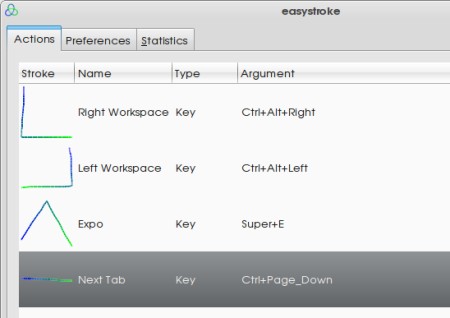
DEB packages for Ubuntu are available from the project’s
site. Download
and install the Easystroke package, and start Easystroke from
Applications->Universal Access->Easystroke Gesture Recognition.
To start Easystroke when you log in, add the command easystroke to
System->Preferences->Sessions.
Easystroke will start running in your notification area. Click on the icon (which will change appearance to show your last gesture) to open the configuration window.
You’ll need to add some actions to start using Easystroke. Click the Add
Action button in the Actions tab to do this. A new row will be added to the
list of actions, and you will be prompted by an editable text box to enter a
name for the new gesture. Type a name, and press enter. Next the Type field
will be selected.
There are five types of actions Easystroke can take when it detects a gesture, these are the three most useful:
- Command - The Command type can run a terminal command specified in the argument field. This is useful for running applications, or controlling your system via the terminal.
- Key - The key type press the key combination specified in the argument field. You can control any application which uses keyboard shortcuts using this.
- Scroll - The scroll type emulates a scroll wheel using the cursor. The argument field can be used to specify a modifier key to use at the same time.
Select the type you want, and then enter an argument if needed. Press the
Record Stroke button to set the stroke you want to use. Draw the stroke by
holding down the middle mouse button and releasing when you are finished.
Once the stroke is recorded, you can test out the new gesture!
I haven’t played with Easystroke for very long, but here are a few gestures I think I’ll be using heavily (shows with their type and arguments):
- Next Firefox Tab - Key - Ctrl+PageDown
- Previous Firefox Tab - Key - Ctrl+PageUp
- Close Firefox Tab - Key - Ctrl+W
- Compiz Expo - Key - Super+E
- Next Workspace - Key - Ctrl+Alt+Right
- Previous Workspace - Key - Ctrl+Alt+Left
- Terminal - Key - gnome-terminal
- Monitor Off
- Command - xset dpms force off
What mouse gestures do you find useful?
Archived Comments
rrr
you cant really fix that dude unless you put it online
simpsus
I think I will use this to bring firefox like gestures to the desktop. Like
Alt-Tab and Shift-Alt-Tab, Close an application.
Thank your for this great intro!
Anonymous
What theme do you use?
Anonymous
i love my eeepc 1000 w mulltitouch
i cant wiat to see if easystroke has any options for it
Tom
iampriteshdesai:
I’m not sure how to go about recovering data when the whole partition is gone,
but until you figure it out make sure you don’t write to the disk which could
cause the data to be overwritten.
Anonymous:
The metacity theme is Unity, you can find it in the package gnome-themes-extras
on Ubuntu. The GTK theme is Glow Water which is available here: http://www.gnome-look.org/content/show.php/Glow?content=85996 .
Anonymous
this program is pretty much awesome as hell
laptop + compiz + easytroke = awesome
Anon
iampriteshdesai - Easiet way would be to plug the Hard Drive into another PC with windows and use R-studio or some data recovery app. R-studio is the best I have found, it will find your data on lost partitions. You can possibly use an external/usb device so you can plug your HD into another working PC. I hope this helps, I hate to see people loose their data.
titaniumtux
Easystroke is a life saver. I’m running it on my Eee PC t91 and the most vital stroke is to generate a right-click (button 3).
The other coolest thing about Easystroke is that you can add exceptions (disable it) for specific apps (like cellwriter, GIMP, etc.) where I obviously don’t want to be triggering anything via Easystroke while I’m doodling or spelling words. Unfortunately I can’t get compiz working on this machine, although compiz didn’t work at all in the Ubuntu Netbook Remix prior to Karmic anyway, so it’s no big loss. I just want a nice Humanity icon for Easystroke :P
iampriteshdesai
Hi Tom!
I really need your help. I was reinstalling Ubuntu yesterday. I meant to wipe my C: drive clean with the windows and install Ubuntu over it. Now in reality the C: and E: drive are residing on the same physical drive and Ubuntu erased E: drive too. I have lost all my vacation photos, documents,Mp3’s etc. Plzhelp me. What can I do?
Plz!
My email adress is iampriteshdesai@gmail.com
You are the only one who can help me. I have posted this on Ubuntu Forums for a whole day now, and as usual guys there have asked tons of questions but haven’t really given any solution.
Please help me.