
How to Install Fonts in Ubuntu 8.04
Due to GVFS replacing GNOME-VFS in the GNOME desktop environment, in Ubuntu 8.04 my preferred way of installing fonts doesn’t work anymore. In GNOME versions prior to 2.22 you could navigate to fonts:// in the file browser and drag and drop to install fonts. Doing this in Ubuntu 8.04 gives the error:
Nautilus cannot handle fonts: locations
You can still drag and drop to install fonts using a different folder: .fonts
in your home folder.
This folder may not exist by default. Open your home folder in the file browser,
and select View->Show Hidden Files. If you can’t find the .fonts folder,
create it.
You can copy any TTF font file into this folder and it will become available immediately to applications after they are restarted. You can get TTF fonts from the Internet, or even a Windows system.
If you’re looking for Microsoft’s core fonts for the
web, you can install them
from the Ubuntu repositories. Simply install the package msttcorefonts, which
requires the multiverse repository to be enabled.
Red Hat has created replacements for the MS core fonts, called the Liberation
fonts. You can install these from the package ttf-liberation.
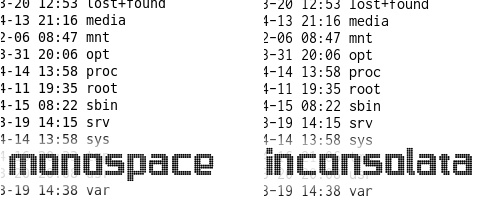
There’s a variety of other fonts available in the Ubuntu repositories, with package names starting with ttf-. One I particularity like is ttf-inconsolata, a nice monospace font. Here’s inconsolata compared to the default monospace font:
If you haven’t already, don’t forget to adjust your font rendering options to
your liking in System->Preferences->Appearance->Fonts.
Archived Comments
Roger Mudd
Interesting. Thanks for sharing.
How does one now go about installing fonts system-wide if they’re not in the
repositories?
My biggest grip with Ubuntu/Linux is that it’s not the accessible multi-user
powerhouse it claims to be. At least not to the uninitiated desktop user.
Sharing files and directories among different users on the same computer while
offering read/write access (think “Shared Documents” on Windows or
“/Users/Shared” on OS X) is a perfect example of this and something I’ve yet to
fully implement on our family’s workstation. Grrrr….
But back to the font issue. Gnome really needs an easy way to install fonts –
preferably without having to restart X. Perhaps a contextual Nautilus shortcut
that reads “Install Font” if you right-click on a font file.
lapega
@Roger: you can download fonts from a lot of websites (just google it) and then
put the downloaded .ttf files into /usr/share/fonts/truetype
It’s simple:
1: Open Applications / Accesories / Console
2: sudo cp Desktop/downld_fnts/*.ttf /usr/share/fonts/truetype
3: Ready
This way is quite easy!
@Tom: I like the Courier font to use as monospace, it’s just a classic
ODDie
I still can’t figure out why there is no tool for installing fonts right from the right-mouse-button menu in Nautilus / Gnome.
AFAIR KDE has this, and it’s most effective way for installing new fonts.
Anyone knows such app for Gnome (or at least how to make this KDE app to work under Gnome)?
kenvandine
I think this should just be temporary. Unfortunately the conversion to gvfs isn’t complete, somethings just didn’t make it. I would suspect soon fonts:// will work again.
Abhishek
Thanks for help(below idea) works
You can still drag and drop to install fonts using a different folder: .fonts in
your home folder.
This folder may not exist by default. Open your home folder in the file browser, and select View->Show Hidden Files. If you can’t find the .fonts folder, create it.
You can copy any TTF font file into this folder and it will become available immediately to applications after they are restarted. You can get TTF fonts from the Internet, or even a Windows system.
Herman
Hi,
thank you very much for sharing. Finally, I can use my favorite fonts now.
Anonymous
The command sudo nautilus opens a superuser version of the file browser and the user can then graphically copy and paste font files from any location to any location. This obviously assumes sudo access. The lack of sudo access raises the question whether the user should be installing fonts system wide.
Photonian2
Here it is again, but better structured.
So, to install ttf fonts for system-wide use -
what you do is;
1. Press key combination Alt-F2
2. Type gksu nautilus
3. Type in your user Password
-–1. If you get an error then STOP HERE and get someone who has administrative
privileges
4. Change directory to /usr/share/fonts/truetype
5. Then copy and paste your ttf fonts to your hearts delight
If you don’t understand these instructions then you Certainly should NOT do
this.
May I suggest getting help from a friend who can.
USE CAUTION: By using nautilus with root privileges you have the potential of destroying your system.
-————————————————–
To install ttf fonts for your use only -
what you do is;
1. Press key combination Alt-F2
2. Type nautilus
3. Press key combination Ctrl-H
4. Look for .fonts
-–1. If it’s there then open it.
-–2. If it’s not then create it.
-—–1. By clicking on menu item “File”
-—–2. Then clicking on “Create Folder”
-—–3. Name it “.fonts”
-—–4. Then open your new .fonts directory
5. Then copy and paste your ttf fonts to your hearts delight
Have a Very Nice Day. :-)
-————————————————–
“Tell me, if you can, from where does light Originate?”
Samsul
I think these steps are better than the other, I followed it and was able to install some ttf fonts I like
Lakshmi Mareddy
THANKS A TON!!! I now am able to include the fonts I really like :)
DA
if anyone is banging their head against the wall trying to figure out why a TTF font you just got from the Web does not show up after you put it in .fonts directory, make sure its name is *all lower case* (when typing I just emphasized it by capitalizing the phrase above and realized how stupid it looks, so here are the asterisks :-) ) and so is the ttf extension. Took me an hour to realize that. Windows guys don’t really care about letter case, you know…
Lakmal
Hi,
I really like to thank you for sharing this tip !!!
Thanks. :)
Silversleeves
Doncha’ just love how so many ppl make replies with barely-tangentially relevant links (that don’t link anywhere), random clippages of your own article, or just goofy irrelevant stuff they found by Google-ing “Font Install View Silly Stupid” or words in that vein?
I know I do. Can’t get enough
BZT
Johny C
Your articles are always to-the-point bullzeye!!
Thanks
Richard R
I am new to ubuntu but not to Linux.
I have installed lots of fonts and have ran fc-cache -fv.
However, when I run xfontsel, I get only 4 matches when the selection is all
astericks.
I also get this message when I run xfontsel:
Missing charsets in String Fontset conversion.
I am about to give up!!! Can anyone help tell me why I am getting only 4 matches and how to fix the Missing charsets problem?
Angel Mass
Thanks! I found the information useful, now I can add the fonts in a easier way
raja
ubuntu fonts installation steps
singh
Thank u so much
JackieNP
Thank you very much. It’s very useful and easy to follow your step.
Anonymous
Thanks. This was very helpful.
Yannvolt
thanks a lot.it works!!
Orlando
This worked very well thank you.
the user
.fonts … is’nt possible because under most installs the users are’nt permitted to do that! the word “usefull” here in this bloq is def. wrong… it must be USELESS!!
traxk
Thu Apr 17 2008
Many thanks for the very useful tip. I love Tahoma…
Iakop