
How-to Change Boot Order in Ubuntu 11.04
If you’re dual booting Ubuntu with other Linux distributions or Windows, you may wish to change the which operating system starts by default. Ubuntu uses the GRUB boot loader to display a menu of installed operating systems and boot them. If you don’t see the menu before Ubuntu starts, hold down the shift key while your system starts up.
This guide is intended for Ubuntu 11.04 and 11.10, which both use GRUB version
1.99. If you’ve upgraded from an older Ubuntu installation, you may still have
an older version of GRUB. Search in Ubuntu Software Center for grub-pc and
check the version if you’re not sure.
There’s a graphical configuration tool for GRUB called StartUp-Manager. Unfortunately, judging by its reviews in Ubuntu Software Center the application has not been updated for the latest version of GRUB and has some problems. But if you’re comfortable with editing a configuration file and running some terminal commands it’s not difficult to change the default operating system manually.
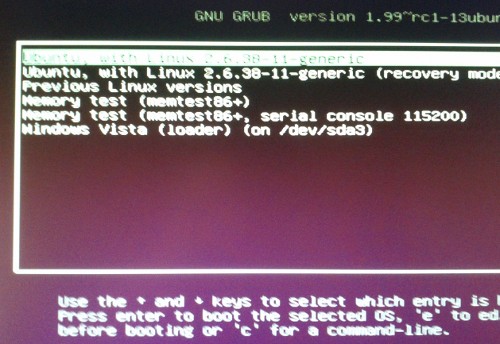
GRUB can be configured using the /etc/default/grub file. Before you make any
changes to it, it may be a good idea to back it up by creating a copy:
sudo cp /etc/default/grub /etc/default/grub.bak
You can restore the copying the backup over the original:
sudo cp /etc/default/grub.bak /etc/default/grub
Open the file using the text editor with root privileges:
gksu gedit /etc/default/grub
The line GRUB_DEFAULT=0 means that GRUB will select the first menu item to
boot. Change this to GRUB_DEFAULT=saved . This change will make it easier to
change the default item later.
Save and close the file. Run this command to apply your changes to GRUB’s configuration:
sudo update-grub
The configuration change we made allows the grub-set-default and grub-reboot
commands to be used at any time. These allow you to change the default boot item
permanently or only for the next boot, respectively.
Run grub-set-default or grub-reboot (with sudo) with the number of the menu
item to boot (the first item is 0). This command will change the default to the
second item:
sudo grub-set-default 1
In the screenshot above, Windows Vista is menu item 5. If you want to select an
item from a submenu like Previous Linux Versions, you can specify the position
in the main menu, followed by a greater-than sign (>), followed by the position
in the submenu. You can also name an entry instead of giving its position.
There’s a great Ubuntu Forums
post about how this works.
The Ubuntu Wiki also has more details on configuring
GRUB.
Archived Comments
Yarma22
I’m running Ubuntu 11.10 and startup manager didn’t work for me: GRUB_DEFAULT was set to 6 but I have only 6 choices in the list (so the last index is 5). Editing the file as described here worked fine!
I don’t know what happened but maybe startup manager has trouble handling sub-menus (the 2 items in the previous linux versions sub-menu might explain the index’s shift).
Brett
I came across this program see below and altered the boot process with it.
dust
I am running Natty Narwhal Ubuntu 11.04 with GRUB 1.99 and i have been searching for info on how to do this for 2 days, tried at least 10 other methods but this one worked perfect!!! Thanks Tom.
Dave
Is there anyway for the grub menu to not display using dual boot 11.04 and win7? Win7 is the default and I tried setting to zero and hitting escape on boot, but that caused many issues. I had to reinstall 11.04 to resolve. I am trying to accomplish no info on the screen and hitting escape only when I want to choose Ubuntu. Thanks.
RBerry
Replaced by Grub Customizer (https://launchpad.net/grub-customizer)
RHallen
I just installed grub-customizer and finally … a way to have the grub boot order and display how I want it … well I’ll have to wait and see what happens with a kernel upgrade
Paul
This topic is completely misnamed - It tells how to change the default boot item, IT DOES NOT tell how to CHANGE THE ORDER in which the options appear in the GRUB menu.
Abhinandan
It was very useful to me.I was struggling with start-up manager. Thank you.
MJ
Great tutorial! Easy to follow and worked perfectly!
Thanks!
Carlos Tolossa Linux 4 ever
i have a Toshiba Laptop with Windows7 Pro, i installed Ubuntu 11.10 as well.
i followed the steps above… IT WORKED ..
Thank you.
Tyger
Thanks for the clear and concise instructions. Exactly what I’ve been trying to do for the last couple of days.
Shane
Great little post - just what i needed!. Working to boot Linux kernel 2.6.37 for Ubuntu 11.10
The webster man
Worked perfectly.. thank you soo much.
Sandeep
Thanks For the Help !
Konstantine
Any solution given is ok but it is not the simplest.
I think the most easy by far from the others is to open the /boot/grub/grub.cfg
and change the line >>set default=“0”<>set
default=“4”<>menuentry<>menuentry<< whitch lists you preferable os is the
number you must put instead of 0.
FS eBiz
works fine, Thanks!
William
sweet, thanks!
Takashi
This worked for me, and the startup-manager application worked on another computer. I appreciate the chance given by this tutorial to look “behind the GUI”. Thank you!
stefan0n
Great! worked for me too with Ubuntu 12.04.
Thank you!
Curt Jonsson
Clever work !
But what happends when an update to the ubuntu Linux kernel adds more items to
the list ?
I think I have at least 12 different ubuntu items in my boot up list. And windows is the last 13th one, moving downwards.
- - -
A solution I have tried before that worked fine was to edit the file
boot/grub/grub.cfg
Cut, move and paste the sections in that file that belongs to different OS.
But in ubuntu 12.04 it has become more complicated because someone have messed
everything up with IFs and stuff in that file, So where to cut in that stupid
file now ?
Curt Jonsson
OK here is an update a few hours later.
I tried to edit the boot/grub/grub.cfg in ubuntu 12.04
And moved the section for windows to the top, so it becomes the default.
And it works !
Open up a terminal window.
Write “sudo nautilus” and then press “ENTER” to open up the Nautilus file handler with permission to open anything with sudo priority.
Navigate to the file boot/grub/grub.cfg and doubleclick to open it up in a texteditor.
WARNING
Edit the file, but use your brain.
If you do it wrong, it won’t boot anymore.
But Windows boot can always be repaired with the tools on the windows
installation disk FIXMBR and tools lika that.
olive
Many thanks, works fine with Windows7:
sudo grub-set-default 5
Neville Scollop
Running Ubuntu 10.04 installed start manager over the software center and bingo worked first time. Win7 is highlighted in Boot menu; time-out now 5 seconds instead of 10.
Bob
Done in 30s. Thx, worked great.
Anonymous
Thank you! Used on Ubuntu Server 12, and it worked
David
Startup Manager works fine with Grub2. I’ve used it for a few years now, and no editing of configurations files is necessary at all.