
Create an Encrypted Private Directory with eCryptfs
eCryptfs is a kernel-native cryptographic filesystem. It’s also a stacked filesystem, eCryptfs must work on top of another filesystem such as Ext3. This means that you don’t need to allocate space for eCryptfs, it will grow and shrink as you add files to it.
eCryptfs will be used in Ubuntu 8.10 to provide an encrypted private directory for every user. I set up my own private directory in Ubuntu 8.04. It’s not a user friendly solution like it will be in the next version of Ubuntu, but it’s not too difficult to simplify mounting and unmounting with some launchers.
Install eCryptfs from the package ecryptfs-utils (click the link to install), or by running the command below in your terminal:
sudo apt-get install ecryptfs-utils
Create a new directory to encrypt. I used a directory called Private in my home folder:
mkdir ~/Private
You don’t want other users on your system snooping on your Private directory, change its permissions to deny anyone but your user access:
chmod 700 ~/Private
Mount a new eCryptfs filesystem in your new folder:
sudo mount -t ecryptfs ~/Private ~/Private
You’ll be asked some questions by eCryptfs. I selected to use a passphrase, the default AES encryption, and 16-byte key length. Notice the defaults, indicated in square brackets, if you’re not sure about an option. (If you’re wondering about the “plaintext passthrough” option like I was, it allows non-encrypted files to be used inside the mount. I selected to turn this off.) eCryptfs will notice that this is the first time you have used your passphrase, and will ask if it can save a hash so it doesn’t have to warn you every time.
Once the mount finishes, try and add some files to your encrypted folder. Unmount the encrypted folder to secure it:
sudo umount ~/Private
If you open the Private directory now, you’ll still see all the filenames. But opening a file will reveal that its contents are encrypted. I examined my test plain text file in a hex editor, and it certainly looks encrypted:
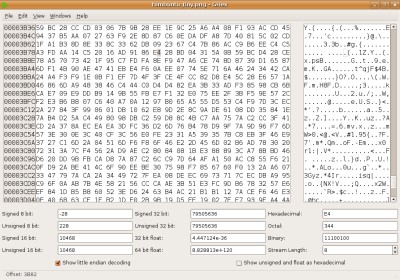
Remounting the Private directory can be done with the same mount command we used before. However, you’ll still be asked for the key type, your passphrase, the cipher, and the key length. Who wants to remember all of that and enter it every time?
You can avoid this by providing some options with the mount command. This mount command specifies enough options that you should only be prompted for your passphrase:
sudo mount -t ecryptfs ~/Private ~/Private -o key=passphrase,ecryptfs_cipher=aes,ecryptfs_key_bytes=16,ecryptfs_passthrough=n
Want to streamline mounting and unmounting the your private directory? In Ubuntu 8.10 all of this will be done automatically when you log in and out. For until then, I just created two simple launchers in GNOME, one for mounting and one for unmounting my private directory.
Create a new launcher by right-clicking on your desktop and selecting Create
Launcher. Change the type to Application in Terminal. Paste in the command
you’re using to either mount or unmount. If you’re using a tilda (~) character
in your commands to refer to your home directory, you need to specify the whole
path instead if you’re using sudo. (It seems that using a GNOME launcher with
sudo will cause a tilda to point to root’s home. In a normal terminal it would
point to your own home.)
These launchers should open a terminal, take any input needed, close the terminal, and perform the eCryptfs mount/unmount.
I’ve also written previously about simple file encryption with OpenSSL.
Archived Comments
David
Will this be shareable via Samba? So that Windows clients can use it as a safe repository….
That’s what I disliked about ENCFS
Vadim P.
If you’re testing 8.10 already, the encrypted folder could use some testing:
http://dustinkirkland.wordpress.com/2008/08/06/encrypted-private-directories-in-ubuntu-intrepid/
CBrookins
Truecrypt has an easy interface, only drawback is you have to designate the space before hand. I usually go ahead and encrypt a whole drive anyway.
Larry
No, the only drawback is the easy interface. I cant use it on a headless system because it requires GTK.
If I wanted windows, I would use Windows.
yurx
truecrypt has command line interface which doesn’t need GTK. I have a few encrypted volumes and they are all scripted.
CBrookins
I just noticed you have a post on that already, sorry about that.
dakira
Two observations:
1. I don’t like the fact that the filenames are still visible when the
partition is unmounted. Are you sure this is how it will be in 8.10?
2. Isn’t there a solution to bind eCryptfs with pam? That way your private dir
will automatically get unlocked when you log into your acount.
Tom
David:
It should work fine with Samaba as far as I can tell.
dakira:
I’m not sure whether Ubuntu 8.10 is going to do something about the visible
filenames. However, the Private directory will be mounted/unmounted
automatically on login/logout so a user should never see the files encrypted
anyways.
eCryptfs can use PAM, that’s how it’ll work in Ubuntu. There’s more information
here:
http://ecryptfs.sourceforge.net/ecryptfs-pam-doc.txt
Anonymous
cryptkeeper is easier, user-friendly to use
anti
http://dustinkirkland.wordpress.com/2008/08/06/encrypted-private-directories-in-ubuntu-intrepid/
The ubuntu server team blogged about how ecryptfs and pam may be an option starting with intrepid.
Anonymous
The plaintext filenames are indeed a problem. According to the homepage, encrypted filenames are being worked on.
Meanwhile, encfs is a FUSE based filesystem which does encrypt filenames. Usage of encfs is similar to ecryptfs (based on what I have seen in this article).
wesw02
WARNING: The article failed to mention that if your really paranoid about your data, you need to encrypt your swap space. Why you ask? Well in the event your system is running low on memory Linux can (and will) store stuff in the swap space and if your accessing your encrypted files while Linux is writing to your swap, there’s a good chance some fragments of those files will be written to the swap drive (without encryption).
Thomas
Don’t bother encrypting _part_ of your filesystem.
Once the ‘hidden’ data is accessed it leaves ghosts of itself all over the system (swap, print spool, spell-checker, backups …).
http://www.schneier.com/blog/archives/2008/07/truecrypts_deni.html
If your data is worth encrypting then encrypt the whole drive. It’s easy enough to do FDE using Ubuntu, not much of a performance hit and gives much better peace-of-mind.
Ubuntu Kung Fu
This is a great tip and I’ve taken the liberty of submitting it to http://ubuntukungfu.org, which is a Digg-like site where people can submit and vote for Ubuntu tips. Would you be interested in submitting any more Ubuntu tips you write to the site? Many thanks!
Welington
I agree with the guy that suggest cryptkeeper.
In these days I’m testing some crypt system and although I fell in love with Truecrypt and I’m using it (because the portability) I really liked cryptkeeper but it has just problem: I do not know where my data is hidden yet. ;)
But, Tom, your explanation about eCrypt was so good. I’ll test it too.
congratulations.
Aaron
If the encrypted folder is automatically unencrypted at login doesn’t that mean your encryption key is stored (unecrypted) somewhere?
Paul Stone
It’s not necessary to store an encryption key anywhere. Probably what is done is that a tag is stored at the end of every data block. The tag can be used to validate whether the output of the decryption operation is valid.
This also means that if the encryption key is lost, there is no way to recover the data.
anonymous
on the:
sudo mount -t ecryptfs ~/Private ~/Private -o
key=passphrase,ecryptfs_cipher=aes,ecryptfs_key_bytes=16,ecryptfs_passthrough=n
u could also
add:
ecryptfs_enable_filename_crypto=n
resulting….:
key=passphrase,ecryptfs_cipher=aes,ecryptfs_key_bytes=16,ecryptfs_passthrough=n,ecryptfs_enable_filename_crypto=n
R_ashFeather
An alternative is TrueCrypt (http://www.truecrypt.org/), although I believe it runs in userland. While that’s a serious downside, TrueCrypt does offer Linux, Windows, and Mac versions. Rather handy in a dual boot system!