
Easily Convert Videos with WinFF and FFmpeg
WinFF is a easy to use graphical interface to the command line FFmpeg video and audio tool. WinFF makes it easy to encode many videos to a wide range of formats all at once. Its FFmpeg back-end should handle just about any video you have.
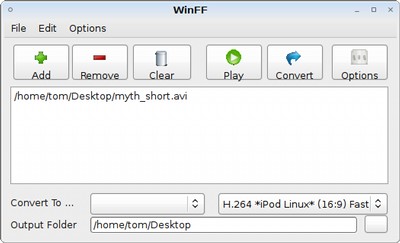
Visit WinFF’s download page and select the latest Debian/Ubuntu package. Download and install the package.
Because WinFF is a front-end for FFmpeg, the video formats you will be able to use depends on your version of FFmpeg. Ubuntu’s repositories have a version that does not support some popular video types, including H264 and AAC. You can get a more complete FFmpeg by installing Medibuntu’s version.
We’ll add the Medibuntu repository instead of downloading the packages manually.
Open System->Administration->Software Sources. Select the Third-Party
Software tab and click Add. When you are prompted to enter the APT line,
paste this text:
deb http://packages.medibuntu.org/ hardy free
Close the Software Sources window and you will be asked if you want to reload
package information. Click Reload. To add Medibuntu’s GPG key and fix
authentication errors, install the package
medibuntu-keyring (click the link to install), or by
running the command below in your terminal:
sudo apt-get install medibuntu-keyring
After you’ve added the Medibuntu repository you should get the latest FFmpeg in your Ubuntu system updates. Install these updates before continuing.
Now you’re all set up! Start WinFF from Applications->Sound & Video->WinFF.
Add one or more videos you want to convert to the queue using the Add button.
To select your target format, first select a device, and then the specific
preset you want to use. Click Convert start.
FFmpeg will not use all of your processor’s cores while it encodes, which is
good if you want to multi task. Select the multi-threading option in
Edit->Preferences to speed up encoding if you’ve got a multi-core processor.
One disadvantage of WinFF is that progress is shown simply as a terminal with FFmpeg’s progress. This can make it difficult to tell how long a conversion is going to take. Other than this, I’ve found WinFF to work really well for converting various bits of video between different formats without resorting to the command line.
Archived Comments
deric
Thanks for sharing this. Just a question, does it support ogg file from recordmydesktop?
Mahyar
Thanks. I’ll give it a shot.
Tom
deric:
I just tested this, and ogg files work fine.
deric
wow. thanks a lot. finally! This one save me time. Thanks. I added you’re site in my blogroll. and BTW im a long time subscriber of your blog. :)
keep up all the good work!
ramy
another excellent post tom. thanks!
*clicks on an add…*
Chris Lees
FFMpeg also supports conversion from Flash Video (.flv) :-)
Donncha O Caoimh
Good find! I used a similar frontend on the Mac but this is much handier as all my media and drives are on my Linux box :)
Stumbled too!
hund
Looks good! To bad it can’t convert anything to OGG. :(
NZJon
Hi there. Does anyone know if there is a WinFF package for AMD64 architecture? Cheers, Jon
gaurish
Yeah, where is the 64bit package?
Panther
Awesome Post worked perfectly thanks
xaeroevo
nice post! hope this will work on h264 encoded mkvs for my PSP! :)
Anonymous
I love you lol
- since getting my ipod and this solved my last problem. you are a god.
- since getting my ipod and this solved my last problem. you are a god.
- god.
:)
iceman600
there is no winFF on my sound and video programs…. why? do i need a restart?
ligelowbee
For those that like command lines and bash scripts, here’s a bash script I use
for encoding video for my Ipod with mencoder:
http://my.opera.com/ligelowbee/blog/2009/02/07/script-to-encode-video-for-my-ipod-touch-using-mencoder
Jackie
When you said “We’ll add the Medibuntu repository instead of downloading the
packages manually. Open System->Administration->Software Sources. Select the
Third-Party
Software
tab and click Add. When you are prompted to enter the APT
line, paste this text:
deb http://packages.medibuntu.org/ hardy free”
How does that work? I’m not sure where the things are in Vista. I opened System and Maintenance –> Adminstration Tools and was stuck there.
Please help! Thanks!
abhilash
Convert a FLV file to a MPG
ffmpeg -i original_file.flv new_file.mpg
Convert a MPG file to a FLV
ffmpeg -i original_file.flv new_file.mpg
Make a MP3 from a MPG
ffmpeg -i input.mpg -vn output.mp3
Convert a WAV file to a MP3
ffmpeg -i son_original_file.avi -vn -ar 44100 -ac 2 -ab 192 -f mp3
new_file.mp3
nwilliam3
Great Post! I was just looking for a tool like this last week.